
Gimbal Logic · November, week 1
Week 1, in order.
One article and two LinkedIn posts. The attendance article you approved, flipped to lead with the scan, then two posts. Each post below is ready to copy, with its image and first comment.
| When | What | Status |
|---|---|---|
| This week, on gimballogic.com | Article 1: Your Participants Are in Nonprofit Cloud. Is Your Attendance? | Approved, flipped |
| The day after Article 1 is live | Post 1: one scan at the door (restart post) | Ready |
| Two days later | Post 3: 4 ways to scan a barcode in Salesforce (your text) | Ready, your text |
Each article is republished on Medium about a week after it goes live on gimballogic.com, with a link back to your site so the original keeps the credit.
- Under the post, click Download image.
- Click Open in LinkedIn with this text. LinkedIn opens a new post with the text already typed in.
- In that box, click the picture icon and add the image you just downloaded.
- Click Post.
- Within a minute, click Copy text under FIRST COMMENT and paste it as the first comment on your post.
Week 1
Your Participants Are in Nonprofit Cloud. Is Your Attendance?
Approved by you on Oct 31; reordered on your note so it opens with the scan at the door and keeps the by-hand way as a short contrast. Read it.
One scan at the door (the restart post)
Updated to lead with the scan, like Article 1. This replaces the earlier version on the LinkedIn tab.
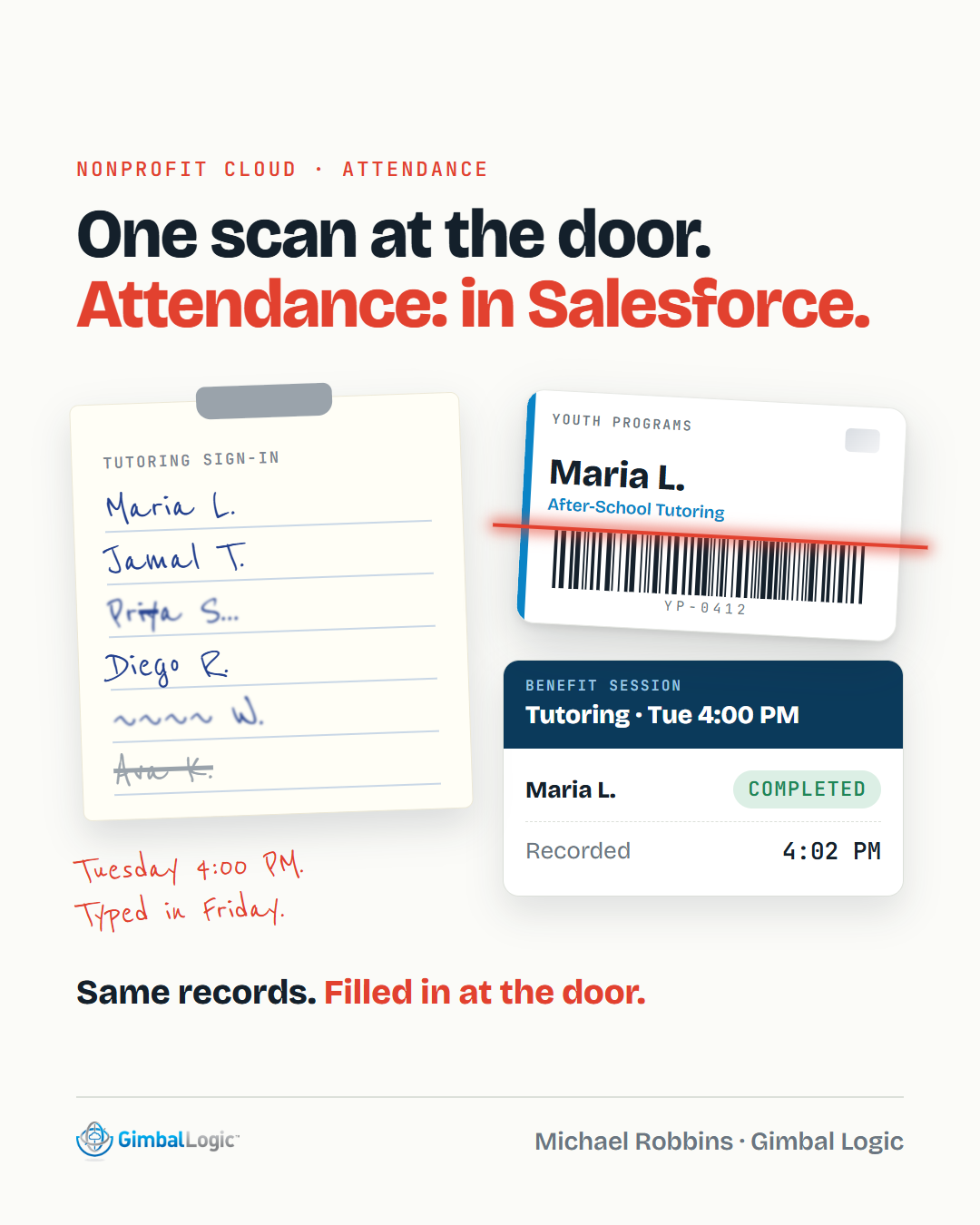
A participant holds up a QR code on their phone. One scan, and their attendance is in Salesforce before they sit down.

I have not posted here in a while. I am starting again because this is the part of a Salesforce build I most want people to see.

An organization moves to Nonprofit Cloud. The build covers programs, enrollments and case notes. Attendance is on the list too, and it is often the part that gets moved to "phase two."

It does not have to be. Nonprofit Cloud already has a place for it. Each class is a Benefit Session. Each person's attendance is a Benefit Disbursement.

So here is a Tuesday with a scanner at the door.

4:00 PM. Tutoring starts. Each student shows an ID card or a QR code, just like a concert ticket.
4:01 PM. A staff member scans it with a phone or a USB scanner.
4:02 PM. The attendance is recorded directly in Salesforce, in realtime.

No sign-in sheet to type up on Friday. No names nobody can read. The report is current the same day.

That is the problem we work on at Gimbal Logic.

Over the next few weeks I will share what I have learned about attendance, check-in and equipment tracking in Salesforce. Plain and practical.

A question for Salesforce admins and program staff:

When your org moved to Nonprofit Cloud or NPSP, was attendance part of the first build, or was it moved to phase two?
FIRST COMMENT (post within a minute)
For anyone who wants the step-by-step version: I wrote out how attendance works in Nonprofit Cloud, the click version and the scan version side by side, plus a short checklist before you start.
https://www.gimballogic.com/articles/nonprofit-cloud-attendance-scan-instead-of-click
4 ways to scan a barcode in Salesforce
Your text and title, with the image redrawn from your four options.
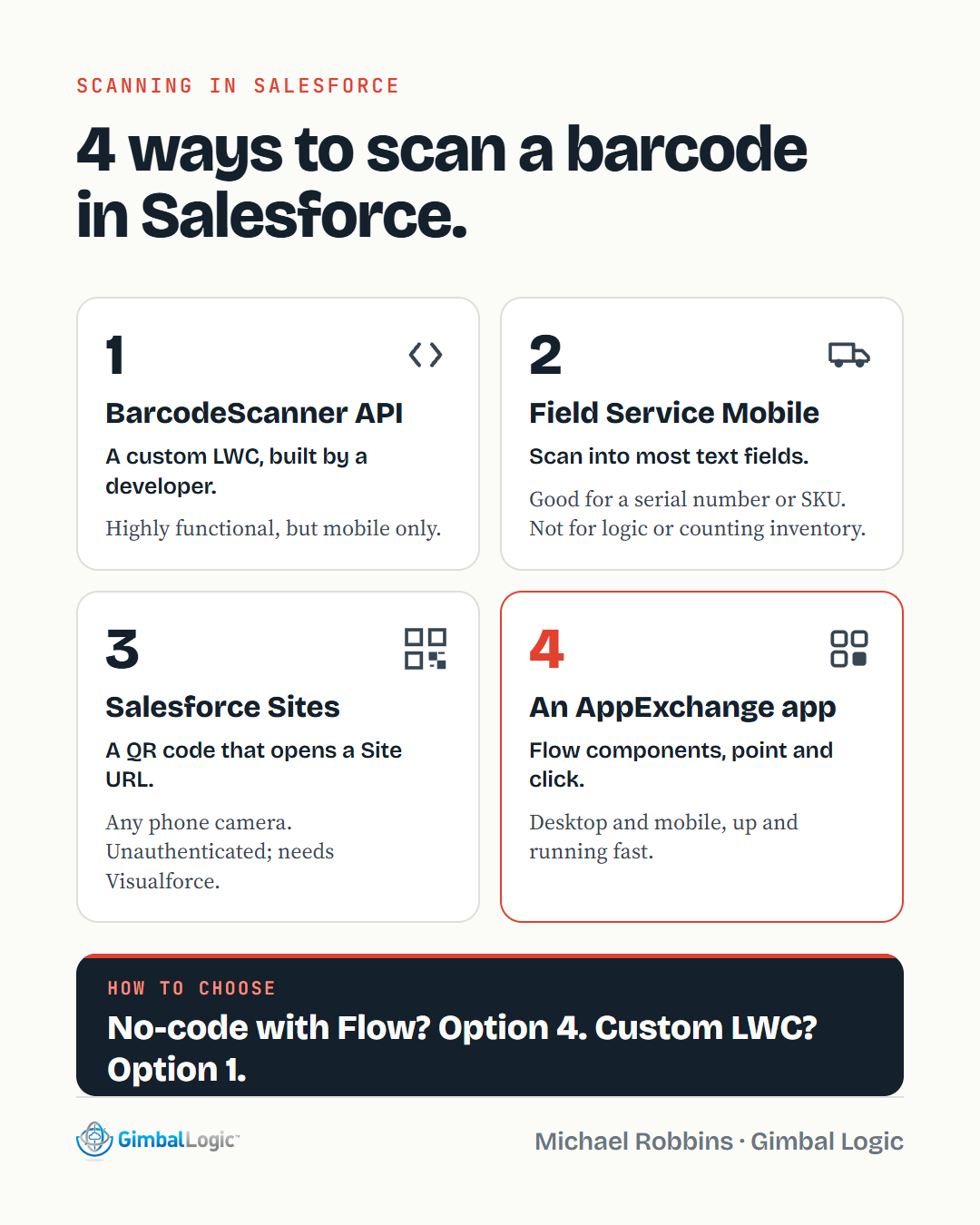
4 ways to scan a barcode in Salesforce

1. Build it with the Salesforce BarcodeScanner API.
Using the BarcodeScanner API, a developer can build a Lightning Web Component to scan a barcode using the camera of a mobile device. A developer builds the screens and logic using HTML, JavaScript and Apex. The end result can be highly functional, but it works only on mobile.

2. Field Service Mobile
Using the Field Service Mobile App, most text fields can be populated by scanning a barcode. This can be helpful for capturing the Serial Number of a device, or the SKU of a part, but it's not well-suited to running logic and upserting records in succession (e.g. counting inventory).

3. Salesforce Sites
It's possible to generate QR codes containing the URL for a Salesforce Site. The QR code could then be scanned using the camera app of any modern smartphone or tablet. It's unauthenticated, and it requires Visualforce and probably Apex.

4. Install an app from the AppExchange (AgentExchange)
There are apps on the AppExchange that include Flow components for barcode scanning. Install the app, configure the screens using point-and-click techniques, and you can be up and running with robust barcode scanning functionality for both desktop and mobile.

At Gimbal Logic, we have deep experience with all four options. We offer a "do it yourself" app on the AppExchange (option 4), and we also do a lot of custom development (options 1 and 3).

How to choose:
→ Quick, no-code implementation using Flow? Option 4.
→ Highly-functional, customized user experience using LWC? Option 1.
→ Record Serial Number in Field Service? Option 2.
→ Launch a webpage using a QR? Option 3.

Tell us your "use case" for barcode scanning in Salesforce, and we'll help you evaluate your options.
FIRST COMMENT (post within a minute)
For anyone building option 1, Salesforce's BarcodeScanner compatibility page: https://developer.salesforce.com/docs/atlas.en-us.mobile_offline.meta/mobile_offline/use_barcodescanner_compatibility.htm